
IPTV Black Screen on Some Channels – What It Means and How to Fix It
A black screen – the picture gone, though the sound or the guide may still be there – is one of the easier faults to pin down, because the pattern tells you the cause before you change anything. A black screen on one channel while the rest play is the channel’s problem, not your connection’s. Start with a single question, and the rest of this guide follows from the answer.
On this page
First: all channels, or only some?
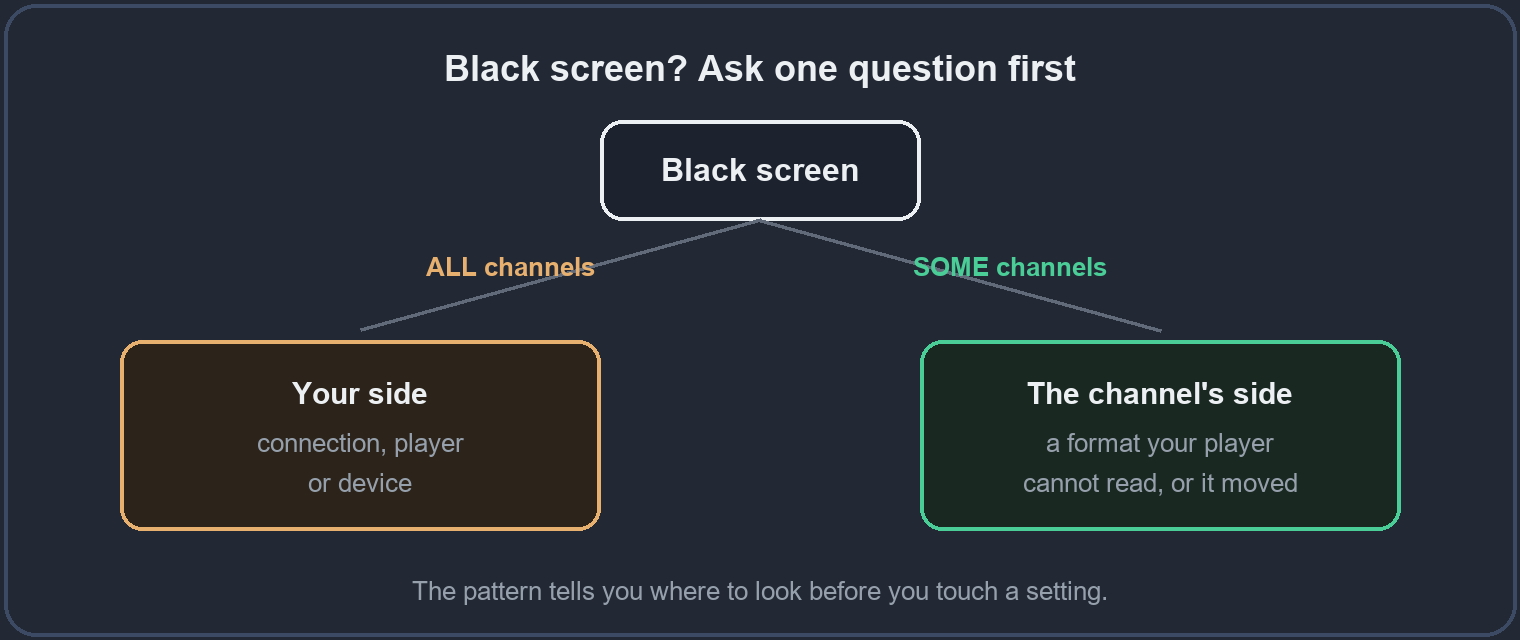
This one question splits the problem cleanly in two, and it is worth answering before you touch a setting, because the two halves have nothing in common.
- Every channel is black – the issue is your connection, your player or your device, not the channels themselves. Nothing is reaching the screen, which is the same family of causes as buffering. Start with our guide on why IPTV freezes or buffers, because the fixes overlap almost exactly. It is also worth a ten-second check that the line itself is active: paste it into the free IPTV line checker to rule out an expired or device-limited line before blaming the hardware.
- Only some channels are black – the ones that play prove your connection, player and device all work. The problem is narrowed to those specific channels, or to a format your player cannot decode. If a channel you expected is missing rather than black, confirm your line actually carries it with the free IPTV channel finder.
From here on, this guide covers the second case – some channels black, the rest fine – because that is the one most people actually have.
Quick reference: what you see, cause, fix
| What you see | Likely cause | First fix |
|---|---|---|
| Every channel black | Connection, player or device | See the freezing guide |
| A few channels black, rest fine | Format your player cannot read | Try another player |
| A whole category will not open | Locked or hidden category | Check the settings |
| Black after days of use | App cache full | Clear cache, restart |
| One channel stays black | Channel moved or stopped | Tell us which channel |
Fix 1: reload the channel
Leave the channel and come back, or close and reopen the player. A channel that went black during a brief drop in the connection usually comes back on a fresh load, because the player requests the stream again from the start. It costs five seconds and clears a surprising share of cases, so it is always the right first move.
If the channel comes back and stays, you are done. If it goes black again straight away, the reload has told you the cause is steady rather than a one-off, and the next fix is where to go.
Fix 2: a format your player cannot read
Channels are not all delivered in the same format, and some players cannot decode every one. That is why a handful of channels show black while the rest play perfectly – the player simply does not know what to do with those particular streams. The quickest way to prove it is to open the exact same channel in a different player.
If it plays in the second player, the first one was the problem, and a well-known, well-maintained player usually handles every format cleanly. It is worth keeping a second player installed purely for moments like this – it turns a mystery into a one-tap test.
Fix 3: a locked or hidden category
Some players hide certain categories, such as adult content, behind a setting or a PIN. When a whole group of channels shows black or will not open at all, this is often the reason – the channels are perfectly fine, they are simply being held back by a parental or privacy setting you may not have set yourself.
Look through the player’s settings for a locked, hidden or PIN-protected category and unlock it if you want those channels. If a category is missing entirely rather than black, the same setting is usually what removed it from view.
Fix 4: clear the app cache
A player that has run for days builds up a cache, and a crowded cache can leave channels stuck on black that played fine last week. Clearing the app cache, or closing the app fully and reopening it, gives the player a clean start without losing your setup.
On a basic box a full restart does the same job and clears the memory at the same time, which is why “turn it off and on again” genuinely works here. Make it a habit every few days if your device is modest.
Fix 5: the channel itself
Sometimes the channel has simply moved or stopped at the source. If one channel stays black after everything above, while every other channel is perfect, the problem is not in your home at all – it is on our side, and it is ours to put right.
The quick checklist
- Check whether it is all channels or only some.
- Reload the channel, or reopen the player.
- Try the same channel in a different player.
- Check for a locked or hidden category in the settings.
- Clear the app cache or restart the device.
When it is us, not you
A single channel black while everything else plays, after you have tried the steps above, is a problem at the source – and that is ours. Tell us which channel through the site and we sort it. If the guide is also wrong for that channel, our TV guide (EPG) page explains why the two often go together. Not sure a site is really us? Our official website page settles it.
Questions people ask
- Why do a few channels show black while the rest are fine?
- Usually a format your player cannot read, or that channel has moved. Try another player first.
- A whole group of channels will not open. What is that?
- Often a locked or hidden category in the player settings, such as adult content behind a PIN.
- Every channel is black. Is it the service?
- When it is all channels, it is almost always your connection, player or device – not the channels. Start with the freezing and buffering guide.
- The sound plays but the picture is black. Why?
- The player received the stream but could not decode the video part – a format issue. Another player usually fixes it.
Test it on your own screen
The surest check is your own setup, before you decide anything.