
Why Your IPTV Keeps Freezing or Buffering – and How to Fix It
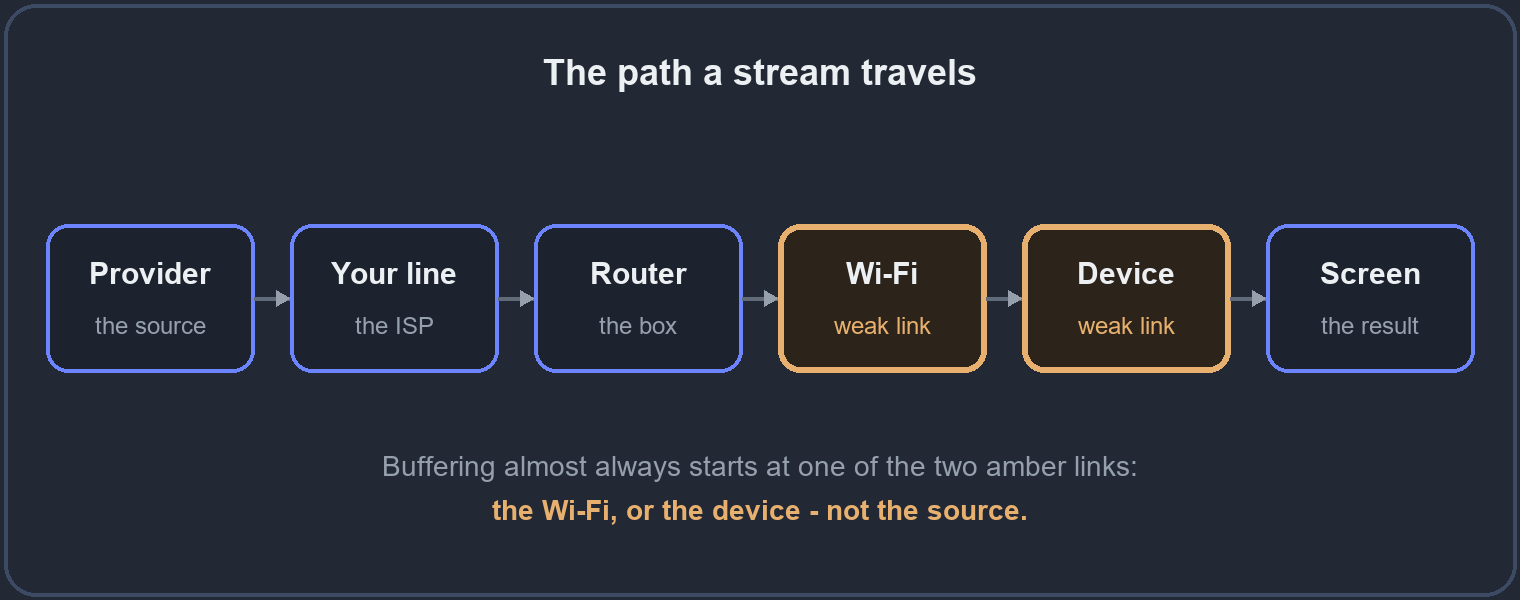
A picture that freezes, spins, or drops to a lower quality is the single most common IPTV complaint – and the reassuring news is that it is nearly always the connection or the device, not the service. A frozen picture is usually a tired connection, not a broken stream. A stream travels a long path to reach your screen, and it only takes one weak point on that path to make it stutter. This guide walks the whole path, names the six real causes in the order they come up, and gives you a two-minute checklist plus a fix for each device.
On this page
First, name what you are seeing
Three different problems all get called “buffering,” and each one points at a different cause. Naming yours first saves you from trying the wrong fix for ten minutes.
- Buffering – it pauses to load, then plays, then pauses again. The connection cannot keep up with the stream’s bitrate, so the player keeps stopping to refill its buffer.
- Freezing – the picture stops dead while the sound may carry on for a second, or everything halts together. This is almost always a brief, sharp drop in the connection rather than a steady shortage.
- Quality dropping – it keeps playing but goes soft and blocky, then sharpens again. The player is lowering the quality on purpose to survive a slow moment. It is coping, not broken.
- A black screen on a single channel – the line is fine; that one channel or its format is the problem. That has its own guide: black screen on some channels.
Hold that distinction in mind as you read on. A steady buffer and a sharp freeze rarely share a cause, and the table below sorts the symptoms for you.
Quick reference: symptom, cause, fix
| What you see | Most likely cause | First fix |
|---|---|---|
| Buffers mostly in the evening | Connection slows at peak hour | Test speed at that hour |
| Worse on the far TV than the phone | Wi-Fi reach | Move closer, or use a cable |
| One player stutters, another is fine | The player | Switch player, clear cache |
| Only 4K struggles | Device at its limit | Restart, try a lower quality |
| Buffers only when the house is busy | Too many screens | Count every screen at once |
| Started after turning on a VPN | VPN detour | Switch server or turn it off |
Cause 1: the connection at the busy hour
Most buffering happens in the evening, and that timing is the biggest clue of all. Between roughly seven and eleven at night the whole street is streaming at once, and many home connections slow down under that shared load. A speed test at a quiet lunchtime will look perfect and tell you nothing useful.
So test at your real viewing hour, on the device you actually watch on. If the number drops in the evening, the busy hour is your cause, and the stream is simply competing for a line that is briefly too small. We go through the exact figures each quality needs – and why a fast plan can still fall short at nine o’clock – on our internet speed for IPTV page.
Cause 2: Wi-Fi, not the plan
This is the weak link people blame last and should blame first. A 300 Mbps plan means very little if the television sits three walls and a floor away from the router, because Wi-Fi weakens fast through solid objects. A signal that reads “full” on a phone held next to the router can be threadbare by the time it reaches the TV in the back room.
The test is quick: if the far TV buffers while your phone right next to the router plays the same channel cleanly, the plan is fine and the Wi-Fi is the problem. A network cable to the main television ends it almost every time. Where a cable is impossible, move the router into the open, keep it off the floor and away from other electronics, or add a mesh point halfway to the TV. On a dual-band router, the 5 GHz band is faster up close while 2.4 GHz reaches further – put the near screens on 5 GHz and the far ones on 2.4 GHz.
Cause 3: the app or player
Not all players are equal, and the one you use shapes how a stream holds up. A player that has run for days without a proper restart builds up a full cache and a long list of background tasks, and it starts to stutter on streams it handled fine last week. The first move is the cheapest: close the app completely – not just back to the home screen – and reopen it, or clear its cache in the settings.
If that does not help, test the exact same channel in a second player. When one stutters and the other plays cleanly, you have your answer: the first player was the weak point, and a well-known, well-maintained player usually fixes it for good. It is worth keeping a second player installed purely as a tie-breaker for moments like this.
Cause 4: an overloaded device
An older streaming stick or a basic box has a small amount of memory and a modest processor, and a heavy stream – especially 4K – can push it to its limit. When that happens the picture stutters even though the connection is fine, because the bottleneck has moved from the line to the hardware. The giveaway is that it only struggles on the highest-quality streams and settles on standard ones.
Close any apps running in the background, and restart the device every few days rather than leaving it on standby for weeks – memory fills up quietly over time. If a device is years old and strains on everything, a modern stick is an inexpensive fix that often does more for smoothness than upgrading the internet plan.
Cause 5: too many screens at once
Every screen playing at the same moment adds to what your connection has to carry, and the totals climb faster than people expect. Two televisions and a phone all streaming together is roughly three times one screen – and that is before anyone in the house opens a game download or a video call on the same line.
If the buffering appears only when the whole household is watching, you have hit the ceiling of the connection, not a fault in the service. Add up every screen that runs at once and compare the total to your line’s real evening speed. If they are close, the fix is a faster plan or fewer simultaneous streams, not a different provider.
Cause 6: a VPN or the router
A VPN can help in some situations, but a distant or crowded VPN server also adds a long detour that slows the stream. If the buffering began when you switched a VPN on, turn it off for a moment and test: if it clears, the server was the cause, and a closer, less busy one fixes it without giving up the VPN entirely.
The router itself is the quietest culprit of all. One that has been on for months, or is several years old, can slow down or drop connections under load. A simple restart – power off for thirty seconds, then on – clears its memory and often smooths out stutters that had no other explanation. If your router is old and the problems are constant, it may simply be past its best.
Fixes device by device
The cause is the same everywhere, but the quickest fix differs by what you watch on:
- Firestick – close background apps from the recent list, clear the player’s cache in Settings, and restart the stick. The small models in particular benefit from a lower quality on 4K channels.
- Smart TV – the built-in apps are often the weakest players. Restart the TV fully (unplug for thirty seconds), and if it keeps struggling, a cheap external stick usually outperforms the TV’s own software.
- Android TV box – clear the app cache, close background apps, and keep the box on a cable rather than Wi-Fi where you can.
- Phone or tablet – these rarely struggle on power, so buffering here points straight at the Wi-Fi or the mobile signal; move closer to the router or switch to a stronger network.
- Windows PC – close other browser tabs and downloads, which quietly eat the same bandwidth and memory the stream needs.
The two-minute checklist
- Run a speed test on the device you watch on, in the room you watch in, at your normal evening hour.
- Move closer to the router, or run a cable to the main TV.
- Close and reopen the player; clear its cache.
- Restart the device and close background apps.
- If you use a VPN, turn it off and test again.
- Restart the router – off for thirty seconds, then on.
- Count how many screens are playing at once, and try with just one.
Most freezing clears at one of those steps. If you have worked right through and it still stutters on many channels at once, the problem may be on our side – and then we genuinely want to know.
When it is us, not you
If a single channel is black or frozen while every other channel plays perfectly, or the guide is wrong across many channels at once, that is ours to fix, not yours. Tell us which channel through the site and we sort it at the source. Not sure a site is really us? Check our official website page first, so you are always dealing with the real XtreamCube.
Questions people ask
- Why does it only buffer in the evening?
- Many home connections slow at peak hours when the whole area is online. Test your speed then, not at a quiet time, to see it.
- My speed test is fast but it still freezes. Why?
- Almost always Wi-Fi reach or a short, sharp drop in the connection, not the plan. A cable to the main TV usually ends it.
- Does 4K cause more buffering?
- Yes – 4K needs far more steady speed and more from the device. If only 4K stutters, you are near the limit of the line or the box.
- Will a faster internet plan fix it?
- Only if your own evening speed test shows the line is short. If the line is fine but the Wi-Fi or device is weak, a faster plan changes nothing.
- Nothing here worked. What now?
- If every fix failed and it is on many channels at once, tell us what you see through the site so we can check our side.
Ready to see it run on your own setup?
The surest test is your own screen, on your own connection, at your own busy hour – before you decide anything.