
IPTV Audio Out of Sync? How to Fix Lip-Sync and Delay
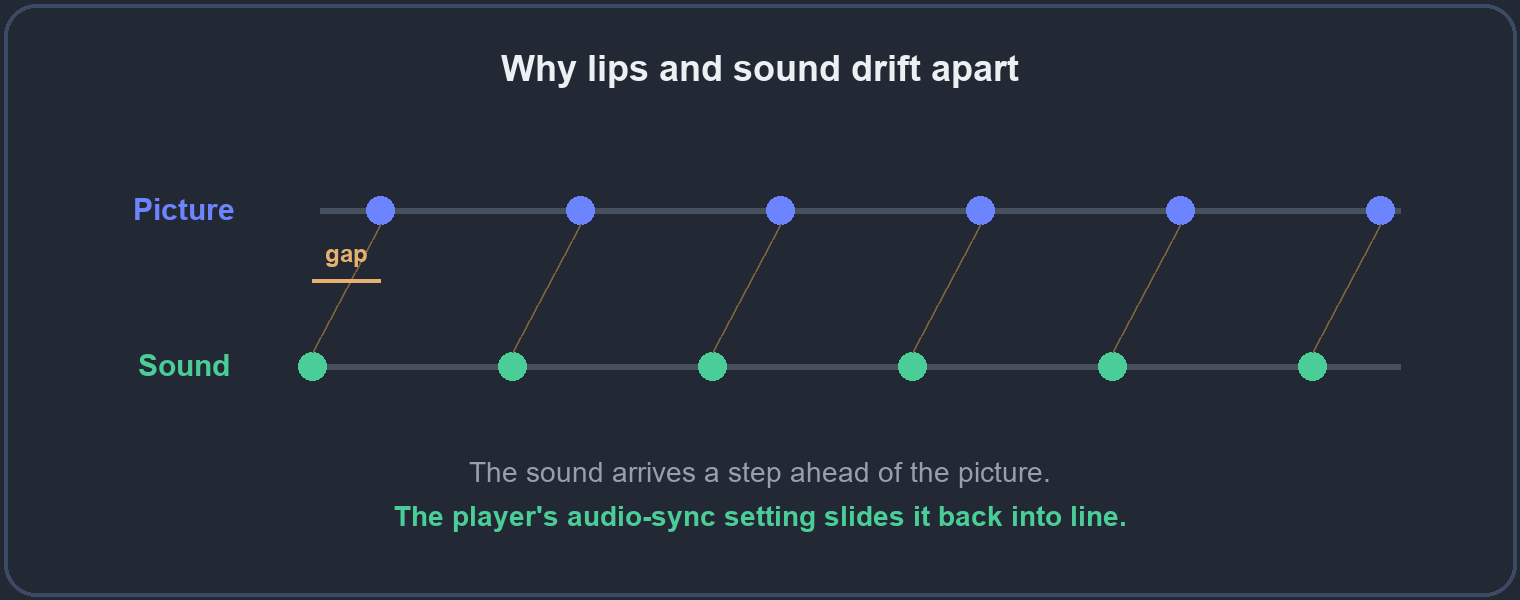
When the sound runs ahead of or behind the picture, lips move at the wrong moment and a programme becomes unwatchable within minutes. Audio drift is almost always a setting between the app and the speaker, not the stream itself. The picture and the sound travel as two separate tracks, and when one arrives a fraction before the other, you get the drift. This guide shows how to find which side is slipping and slide it back into line.
On this page
First, narrow it down
Two quick questions point you straight at the cause and save you a lot of fiddling. Answer them before you change any setting.
- Is it on every channel, or just one? One channel out of sync while the rest are fine is that channel’s feed – not your setup, and not something you can fix from the sofa. When every channel drifts, the cause is a setting on your side.
- Does it drift more the longer you watch? A gap that grows over a few minutes points to the device struggling to keep up. A fixed gap that never changes points to the speaker or the player, and that is the easy kind to fix.
Most sync problems are the fixed kind, and the single setting in the next section clears the majority of them in seconds.
Quick reference: what you notice, cause, fix
| What you notice | Likely cause | First fix |
|---|---|---|
| Fixed gap, always the same | Speaker or player | Player’s audio-sync setting |
| Drifts more over time | Device working too hard | Restart, close background apps |
| Only on a Bluetooth soundbar | Bluetooth delay | Audio-sync setting, or a cable |
| Every source on the TV is off | The TV’s own delay | TV lip-sync setting |
| Only one channel | That channel’s feed | Tell us which channel |
Fix 1: restart the stream
The simplest fix works more often than people expect, so try it first. Leave the channel and come back, or close the player completely and reopen it. A stream that slipped out of sync during a brief drop in the connection usually lines straight back up on a fresh start, because the player reloads both tracks together.
If the drift returns the moment you settle in again, the restart has told you something useful: the cause is not a one-off glitch but a standing setting, and the next fix is where you want to be.
Fix 2: the player’s audio-sync setting
Almost every IPTV player has an audio delay or A/V sync control, usually tucked into the playback menu that appears while a channel is open. It lets you nudge the sound forward or back in small steps until lips and words meet. This is the one setting that fixes a steady, unchanging gap, and it is worth learning where it lives on your player.
Move it a little at a time and watch a face as you go – a news presenter is perfect, because the mouth is clear and the speech is constant. Once it matches, the setting usually holds for good, so this is a five-second job you do once rather than every evening.
Fix 3: Bluetooth speakers and headphones
Bluetooth is a common hidden cause, because it adds its own delay on top of everything else – the sound has to travel wirelessly and be decoded by the speaker, and that takes time the picture does not. If you use a Bluetooth soundbar or headphones, test the same channel on the television’s own speakers for a moment.
If the sync is perfect on the TV speakers and only drifts on Bluetooth, you have found it. Use the player’s audio-sync setting to compensate for the Bluetooth delay, or switch to a wired connection, which removes the delay at the source. Wired is the surer fix if you watch a lot of fast dialogue or live sport.
Fix 4: the television’s lip-sync setting
Many televisions carry their own audio delay or lip-sync control in the sound settings, entirely separate from the app. This matters because it can be the real culprit – or it can make things worse if you adjust the wrong one. The test is simple: if every source on the TV is slightly off, not just IPTV, the TV’s own setting is the place to fix it.
But if only IPTV drifts while other inputs are fine, leave the TV setting alone and use the player’s sync instead. Changing the TV-wide setting to fix one app will throw your other devices out of line.
Fix 5: an overloaded device
On an older stick or a basic box, a heavy stream can make the sound slip, and the tell-tale sign is that the gap grows the longer you watch. The device is falling a little further behind each minute because it cannot quite keep both tracks together under load.
Close any background apps, restart the device, and if the drift only appears on high-quality streams, try a lower quality – it will stay in sync because the device has room to spare. A device that drifts on everything, even after a restart, is simply near the end of its useful life.
Where the delay hides, by device
The fix is the same idea everywhere, but the setting lives in a different place:
- Firestick and Android boxes – the audio-sync control is in the player’s own playback menu, not the system settings.
- Smart TV – check both the player and the TV’s sound menu, and remember a Bluetooth soundbar is the usual cause here.
- Soundbar or AV receiver – many have their own lip-sync or audio-delay setting; a small adjustment there often solves it at the source.
- Phone or tablet with wired earphones – rarely drifts; if it does, restart the app first.
The quick checklist
- Leave the channel and come back, or reopen the player.
- Open the player’s audio-sync setting and nudge it until it matches.
- On Bluetooth sound, test the TV speakers to rule the link in or out.
- Check the television’s own lip-sync setting if every source is off.
- Restart the device and close background apps.
When it is the channel, not you
A single channel out of sync, while every other channel is fine, is a problem with that feed – and that is ours to fix, not yours. Tell us which channel through the site and we sort it at the source. If the picture also freezes, start with our guide on why IPTV freezes or buffers. Not sure a site is really us? Check our official website page.
Questions people ask
- The sound is ahead of the picture by the same amount all the time. Why?
- That is a fixed offset – usually your speaker or the player. The player’s audio-sync setting corrects it in a few seconds.
- It starts fine but drifts after a few minutes. What is that?
- Usually the device working too hard. Restart it, close other apps, and test a lower quality if it only happens in 4K.
- Only my soundbar is out of sync. Is it the service?
- No – that is the Bluetooth delay. Use the player’s audio-sync setting, or connect the soundbar with a cable.
- Do wired headphones drift too?
- Very rarely. Wired audio has almost no delay, so if wired earphones drift, restart the app first.
Want to test it on your own setup?
The surest check is your own screen and your own speaker, before you decide anything.